
Nov 23, 2026
Salesforge 
1. Send in Each Contact’s Own Timezone
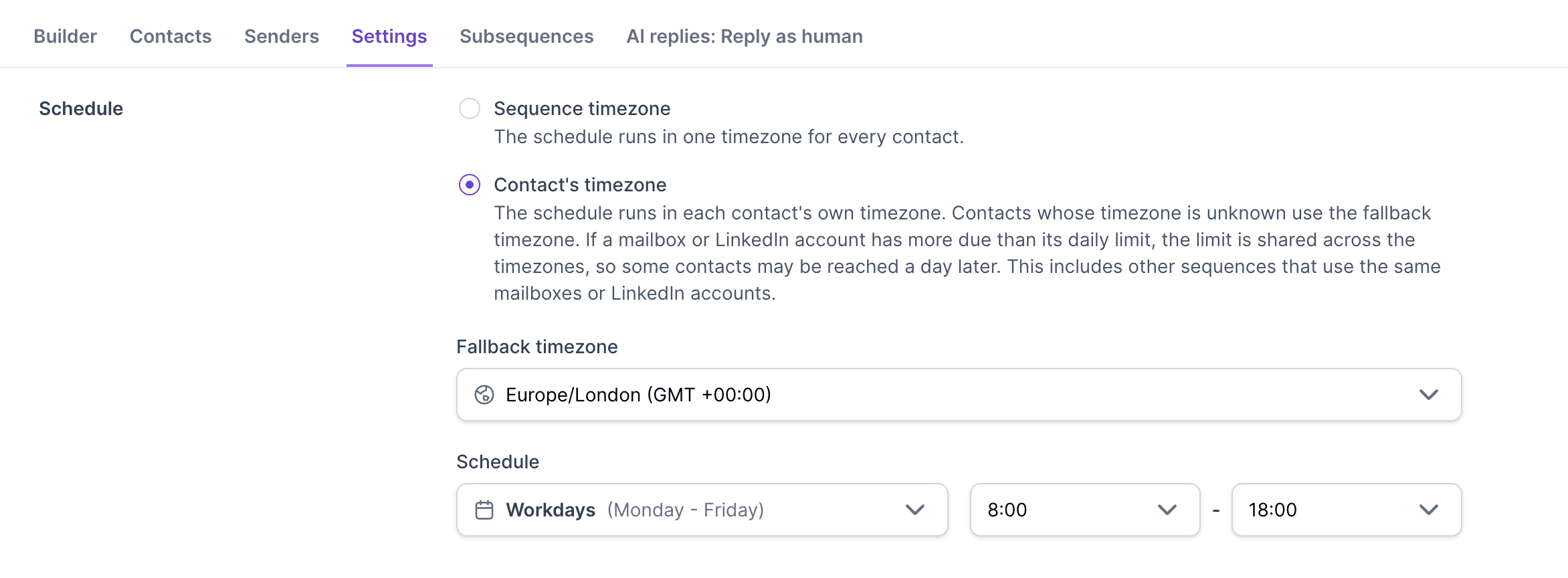
Your Multichannel sequences can now send on each contact’s local clock. Set “Mon–Fri, 8–10 AM” once, and New York contacts get your messages at 8–10 AM New York time while Amsterdam contacts get them at 8–10 AM Amsterdam time.
How it works
In sequence Settings, switch the timezone mode to Contact’s timezone
Your sequence timezone becomes the Fallback timezone, used for any contact whose timezone we can’t work out
Your weekly schedule stays the same, and each contact’s day is simply read in their own local time
Works for email steps, LinkedIn actions and LinkedIn conditions
Where each contact’s timezone comes from
Contact location: add a Location column when you import, or separate City, State and Country columns, and we work out the timezone from it. Contacts exported from Leadsforge come with their location already
LinkedIn lookup: for contacts with a LinkedIn profile but no location, we look it up when the sequence launches. A “Processing locations” badge shows progress, and the location is saved back to the contact
Contacts with neither go out in the fallback timezone
Fair share across timezones
If a mailbox or LinkedIn account has more due than its daily limit, the limit is shared across timezones in proportion to how much each one has to send. Your earliest timezone can’t use up the whole day
That means some contacts may be reached a day later when you’re at capacity. This includes other sequences that use the same senders
Good to know
Available on the Growth plan
Contact details show which timezone each contact is being sent in, and why
Works on already launched sequences too: switch the mode and upcoming steps follow the new timing
New {{location}} variable for your copy, filled from the custom variable or the contact’s Location
Also available in the public API, with timezoneMode on sequences and location on contacts
Help article: Dynamic scheduling in Salesforge
2. See Sender Cooldowns & Disconnections at a Glance
When LinkedIn temporarily limits a sender, or a mailbox or LinkedIn account disconnects, you’ll now see it right where you work instead of wondering why a step hasn’t run.
LinkedIn cooldowns
When LinkedIn temporarily limits connection requests or profile views for a sender, you’ll see a cooldown label with a live timer, e.g. “paused until 18:40 today (in 5h 12m)”
Profile-view cooldowns also pause the checks that rely on a profile view: Is connected, Is open profile and If request accepted
Sending resumes automatically when the cooldown ends, with no action needed. All other LinkedIn actions and emails from that sender keep running as normal
Disconnected senders
A disconnected LinkedIn account or mailbox now shows a clear label, so you know exactly which sender needs attention
Where you’ll see it
Sender profiles page: a label and tooltip on any sender that’s on cooldown or disconnected
Sequence contacts page: a summary at the top, e.g. “2 profiles are on cooldown” or “1 mailbox disconnected”. Click it to jump to just the affected senders or mailboxes and reconnect them
Lead progress: cooldown and disconnection labels next to the sender, plus “Waiting – sender on cooldown until 18:40” on the next step when it’s affected
Leadsforge 
1. Improved Google Maps Search
Google Maps lead discovery is now faster, finds more businesses, and never leaves you with an empty result on a big search.
What’s new
Keywords and categories, separately: type any keyword you like, e.g. “emergency”, or pick from Google’s real category list, e.g. Plumber. Use either one, or both together
More results: related categories are no longer dropped, so a search brings back more of the businesses that match
No more empty big searches: if a large search runs long, you get everything that was found so far and only pay for that
More owner contacts: owner enrichment now finds more owner emails and phone numbers
Faster: searches finish quicker, because we no longer fetch extra places only to throw them away
Good to know
Your result limit now applies to the whole search, not to each category, so asking for 50 businesses across 5 categories gets you exactly 50
1 credit per business found, as before
Existing API integrations keep working with no changes
Mailforge 
1. Connect Cloudflare Domains, No Nameserver Change
If your domains are on Cloudflare, you can now connect them to Mailforge without changing nameservers. Create a Cloudflare API token, and we set up the DNS records in your own Cloudflare account. Your domains stay in Cloudflare and activate on their own. It’s free and takes about 2 minutes.
How it works
Click Connect domains and choose Cloudflare (or Any other registrar for the usual nameserver flow)
Click Open Cloudflare, go to API Tokens and create a Custom token
Give it these permissions: Zone · Read, DNS · Edit, Page Rules · Edit
Under Zone Resources, include the domains you want to connect
Paste the token with your domains in Mailforge and connect
Why it matters
Domains registered with Cloudflare can’t point their nameservers anywhere else, so until now they couldn’t be connected to Mailforge at all
It also works for domains registered elsewhere that use Cloudflare for DNS
No waiting for nameserver changes to spread: domains activate as soon as the records are in place
Good to know
Existing mailboxes on these domains will stop working. Only mailboxes created in Mailforge will work
Keep the token active. If it’s deleted or expires, we can’t manage the domains’ DNS records
Your token is stored encrypted and only used to manage DNS for the domains you connect
Your own Cloudflare page rules stay as they are. We only manage Mailforge’s forwarding rule
Domains on any other registrar connect the same way as before, through nameservers
Help article: Connect Cloudflare domains to Mailforge
We’re still working on more features & workflow improvements across all forges in November! 