
Oct 20, 2026
All Forges 
1. Dark Mode
Dark mode is now live across Salesforge, Leadsforge, Infraforge, Mailforge, Primeforge and Warmforge, so long sessions are much easier on the eyes.
How it works:
Use the theme switch to choose Light, Dark or System. System follows your computer’s setting automatically
Every main screen is covered, from sequences and Primebox to mailboxes, domains, checkout and warmup
The theme is saved separately in each forge, so switch it on in each product you use
Salesforge 
1. Sequence Priority
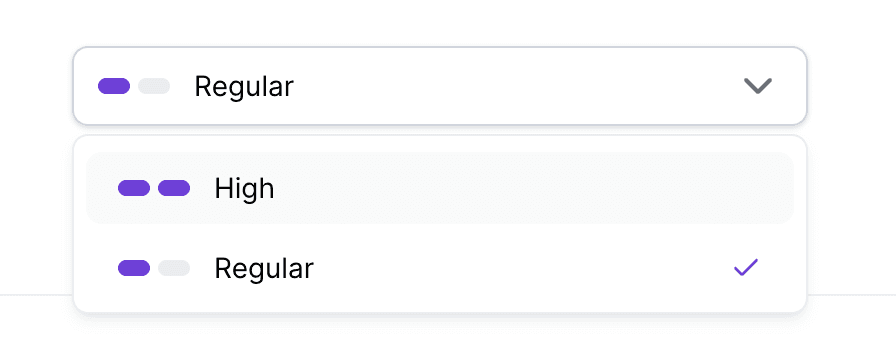
You can now choose which Multichannel sequences get your sending capacity first. Your connected mailboxes and LinkedIn accounts cap how many messages go out each day, and until now sequences were served oldest first.
How it works:
Each active sequence is either High or Regular priority (Regular by default)
High-priority sequences get daily sending capacity first, and Regular ones share what’s left
Change it right in the sequences table, in the sequence Settings step, or via the Public API (sendingPriority)
2. Full Two-Way Salesforce Sync + Activity Sync
The Salesforce integration now syncs both ways and logs your outreach on the Salesforce record, on par with our HubSpot integration.
What’s new:
Two-way sync for both Salesforce Leads and Contacts, including updates, custom variables and optional deletions
Full sync (optional) matches records by email first, so existing records get updated, not duplicated
Field mapping for Leads and Contacts separately
Activity sync logs emails sent (sequences and Primebox), email replies, LinkedIn messages, InMails, replies and connection requests on the matching Salesforce record
Your sales team sees the full conversation history in Salesforce, with no manual logging or CSV round trips!
3. GIFs in Sequences and Primebox
You can now add GIFs to your emails and LinkedIn messages, a quick way to stand out in a crowded inbox.
How it works:
Search and add GIFs from the sequence editor (including subsequences) or the Primebox reply editor
Works in emails, follow-ups, LinkedIn messages and InMails, plus templates and auto-spintax
On LinkedIn, text + GIF arrives as two messages but counts as just one toward your daily limit
4. More Contact Filters When Adding Contacts to Sequences
Filtering contacts when adding them to a Multichannel sequence now matches the main Contacts page.
New filters:
Sequence: include or exclude contacts enrolled in other sequences
Lead status: with one sequence selected, filter by Replied, Active, Finished, Bounced and more
Primebox labels: narrow replied contacts down by label, e.g. only Positive replies
Company and Exclude contacted
The old Status filter is now called Validation status
Building targeted lists from your existing contacts is now much faster!
5. Spam Check in the Public API
The spam check from the sequence builder is now available via the Public API, so API users can check email copy for spam risk before launching.
Returns an overall spam score plus a breakdown of spam words, spintax, links, images, emojis and word count, with recommendations
Supports 10 spam-word languages and A/B variants
Scores match the builder exactly
Leadsforge 
1. More Job Title & Location Filters for Followers Search
Followers search now supports many more job titles and locations, so you can target the exact decision-makers among a company’s LinkedIn followers.
What’s new:
More job titles across marketing, sales, revenue and leadership, from CEO and Founder to VP Marketing, Head of Growth and Head of Revenue Operations
Short titles like CEO or VP Marketing now match properly
New European Union location option covering all 27 EU countries, alongside the US, Canada, Australia and the UK
Chrome Extension 
1. Send More Lead Data to Salesforge
When sending leads from the Chrome extension to Salesforge, you can now include extra details as custom variables, ready for personalization right away.
How it works:
In the extension, go to Settings → Additional data for export to Salesforge
Tick the fields you want sent with every lead:
Job title (on by default)
Industry (on by default)
Company location (HQ)
Company size
Company website
Company LinkedIn URL
Selected fields arrive in Salesforge as custom variables, whether you send leads to a workspace or straight into a sequence
Your choices are saved to your account and stay in place every time you open the extension
Name, company name, email (if enriched) and LinkedIn URL are still sent as before
If a field isn’t available for a lead, it’s simply left empty. Nothing breaks. Personalize by role, industry or company size using leads you sent from LinkedIn in one click!
We’re still working on more features & workflow improvements across all forges in October! 